How to Record Google Meets: The Complete Ops Guide
Summary
Recording a Google Meet requires a paid Google Workspace plan (Business Standard or higher) for the built-in feature. The host clicks More options, then Record meeting; the file saves automatically to Google Drive. Participants without host access can use native screen recorders or AI note-taking bots. For ops teams, the real value is in the AI transcript layer that converts the video into a searchable log with speaker-labeled action items.
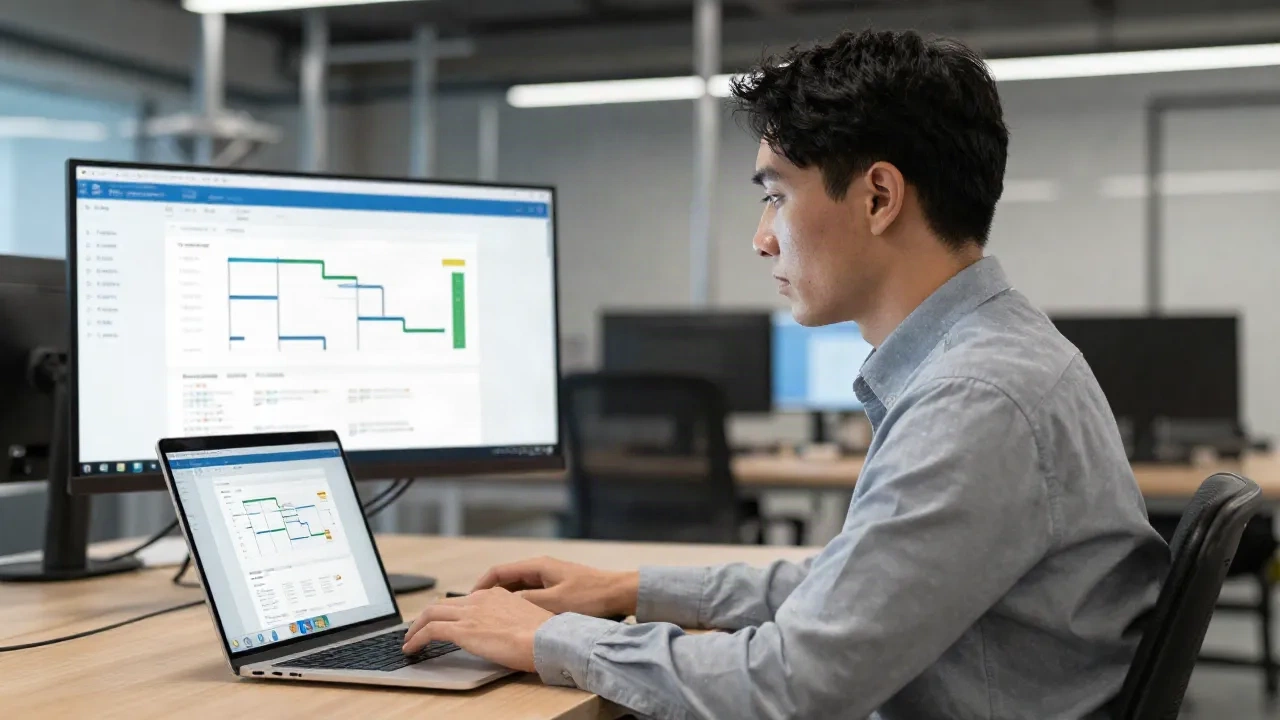
Recording a Google Meet takes fewer steps than most ops managers expect, and the recording lands automatically in Google Drive without a manual upload step. This guide covers the complete process of how to record Google Meets: which Workspace plan qualifies, the exact sequence for hosts, the options available to participants who lack host access, and how to configure automatic recording across an entire organization. The ops angle matters throughout. A video file sitting in Drive that nobody rewatches delivers no throughput improvement. The tools that turn that recording into a searchable transcript with speaker-labeled action items are where the operational value actually accumulates.
Why ops teams need to record Google Meet sessions
Most tutorials treat Google Meet recording as a personal note-taking convenience. For an ops manager running a remote line review, a shift handover debrief, a capacity planning call with a supplier, or a kaizen (continuous improvement) event wrap-up, the stakes are different.
Decisions made in those calls affect throughput targets, WIP (work in progress) levels, maintenance windows, and head count. When someone in procurement says "we can deliver 400 units by Thursday," that commitment needs to be captured precisely, not paraphrased from memory two days later when the parts have not arrived.
A recording also functions as a training artifact. A new shift supervisor can watch the last four weekly OEE (Overall Equipment Effectiveness) reviews and understand exactly what a 77% OEE situation looks like compared to a 61% situation that warrants immediate analysis. That context takes weeks to transfer informally and minutes to absorb from a recorded session.
The third use case is process continuity across shift transitions. Night-shift supervisors reviewing the same recording as day-shift ensures the same data drives the next action, not a telephone-game version of a verbal handover.

Which Google Workspace plans include built-in recording?
Google Meet's built-in recording feature is gated behind paid Workspace tiers. As of 2026, plans that include recording are: Business Standard, Business Plus, Enterprise Standard, Enterprise Plus, and Education Plus. Plans that do not include it: Free personal Gmail, Google Workspace Essentials, and Business Starter.
Business Standard runs at approximately $12 per user per month. If your team is on Business Starter and the missing record button is a real friction, upgrading to Standard is the direct path. There is no standalone recording add-on that bypasses the plan tier requirement.
One important detail: even on plans with recording enabled, only the host or designated co-host can start and stop a recording. A participant who is not listed as a co-host will not see a record button, regardless of what Workspace plan their account carries. This is a permission constraint, not a plan constraint.
How to record a Google Meet as the host: step by step
Once you are in a meeting you started or have been granted co-host access for:
Click the three-dot icon (More options) at the bottom center of the screen.
Select "Record meeting."
A notification banner appears for all participants: "This meeting is being recorded." This is mandatory Google policy and cannot be suppressed or customized.
To stop, return to the three-dot menu and select "Stop recording," or end the meeting.
Processing happens in the background after the call ends. The meeting organizer receives an email with a Google Drive link, typically within five to twenty minutes for a one-hour session. The file goes to a folder called "Meet Recordings" in the organizer's Drive, not in yours, even if you were a co-host who initiated the recording.
For meetings scheduled through Google Calendar, the recording link posts back to the calendar event automatically. Every attendee can access it without the organizer forwarding anything. If the session runs beyond eight hours, Google splits the output into multiple files.
One practical adjustment: if your ops reviews run long, break them into two scheduled blocks rather than one continuous call. Separate recordings are easier to navigate than a single four-hour file that someone needs to scrub through.
Recording as a participant when you are not the host
This is the scenario most guides handle poorly. You are a quality engineer attending a supplier qualification review. Your company is on Business Standard. The host is an external contact running the call from their own account, which may be a free Gmail. You have no co-host status and no record button visible in the interface.
Three practical options:
Request co-host status before the meeting starts. Send a quick message or email to the organizer ahead of the call. Most external hosts agree to this once they understand it is for internal documentation. Granting co-host access takes about fifteen seconds in the participants panel.
Use your machine's native screen recorder. On Windows, the Xbox Game Bar (Win+G, then the record button) captures full-screen video including audio. On macOS, QuickTime Player handles screen recording under File > New Screen Recording. The file stays local and does not go to Google Drive. Resolution is limited to what your display renders, not the original video stream quality.
Use a dedicated AI meeting bot. Tools like tl;dv, Fireflies.ai, and Otter.ai join the call as a named bot participant visible in the participant list. They capture both audio and video and deliver a full transcript with speaker labels along with an AI-generated summary. These tools work regardless of the host's Workspace plan and on any account type, including free Gmail. The bot's presence is visible to everyone in the call.
On the legal side: recording a conversation without informing all participants is restricted in several US states, including California, Florida, and Pennsylvania, which require consent from all parties. Most EU member states have equivalent or stricter requirements. Google Meet's built-in recording satisfies the notification requirement automatically. Screen recording and bot tools depend on you to communicate intent before the recording begins.
How to set automatic recording for your entire organization
For ops teams running high-cadence review cycles, setting recording on by default eliminates the step where someone forgets to hit record. On a busy ops calendar with five to eight recurring calls per week, manual recording gets missed several times per month.
Google Workspace admins configure auto-recording through the Admin Console:
Sign in at admin.google.com with an admin account.
Navigate to Apps > Google Workspace > Google Meet.
Open "Meet safety settings."
Under "Recording," verify that "Let people record their meetings" is enabled for your domain or organizational unit.
For automatic default recording on all new meetings, locate "Meeting artifacts" and enable automatic recording for your organizational unit.
This admin capability became generally available in late 2024. With it enabled, every new Google Meet event created within your domain starts with recording toggled on. The meeting host can still disable it for a specific session from the Google Calendar event before the meeting starts, which is useful for one-on-ones or sensitive discussions.
Combining auto-recording with auto-transcription (configurable in the same admin panel under "Transcripts") means every scheduled ops review produces a verbatim log without any manual action from the team running the call. The setup takes about ten minutes once, then runs passively.
AI transcription: from raw video to an actionable ops log
A raw MP4 in Google Drive delivers almost no operational value unless someone watches it end to end. The transcript is what makes the recording useful day to day.
Google Meet includes its own transcript feature on select Business and Enterprise plans. The transcript appears as a Google Doc linked to the calendar event and generates automatically after the call ends. Accuracy is high for standard English in a quiet audio environment. In noisier contexts, such as a supervisor calling from the shop floor or a remote participant on a variable mobile connection, accuracy degrades and manual correction takes time.
Third-party AI note-taking tools produce a richer output. Speaker labels with timestamps, confidence flags on technical terminology, and configurable summary templates are standard in most tools as of 2026. The summary template configuration is the detail that matters most: set it to output action items with owners, key decisions, and numbers mentioned in the call. A general prose recap is not useful for ops follow-up.
For teams using an AI bottleneck calculator or OEE tracking tool, the transcript creates a searchable record of the numbers discussed. When the cycle time on press 4 came up in three consecutive weekly reviews before anyone escalated, the transcript log shows that sequence. Without it, the pattern only exists in someone's memory.
One metric worth tracking once your team has a recording habit: what percentage of action items from recorded meetings are completed before the next scheduled review? If that rate is consistently below 70%, the recording and transcription system is functioning. The constraint limiting follow-through is elsewhere, usually in how action items move from the transcript into the task management system.
What to do with the recording once the meeting ends
The recording is the input. The operational output is what matters.
A minimal post-meeting protocol that holds up in practice:
The transcript from your AI tool arrives within five to ten minutes of the call ending. One designated person, not the whole team, reviews the auto-generated action items, corrects any misattribution, and routes the cleaned list to the relevant owners. This takes five minutes and prevents the "who was supposed to do that" conversation at the next review.
Action items move into whatever task management system the team uses. Jira, Asana, and shared spreadsheets all work equally well here. The recording link and transcript link are attached to the task for context, so whoever picks up the action can review the discussion without asking for a summary.
For regulated manufacturing environments, verify your records retention policy before archiving or deleting recordings. Meeting records involving production decisions, quality holds, or safety discussions may fall under document control requirements in your industry, which affect how long you store them and where.
The long-term value of a recording archive is searchability. Six months from now, when there is a question about when the team agreed to revise the throughput target on line 3, a keyword search across transcripts identifies the exact meeting, the speaker, and the context. That is an audit trail built from meetings you were already holding, with no additional effort.
An OEE below 60% warrants analysis, not a meeting. But when the analysis requires a cross-functional meeting, that meeting should leave a structured record. How to record Google Meets correctly is the smaller problem. Turning that recording into a usable ops document is where the difference between good ops practice and average ops practice actually shows up.